Convert Your Squarespace Website into a Native Mobile App with WebToApp
WebToApp Team
Product Team

Squarespace is one of the most popular website builders for creating beautiful, professional websites. But what if you want to take your Squarespace site to the next level and reach users directly on their mobile devices through the App Store and Google Play? With WebToApp, you can convert your Squarespace website into native iOS and Android apps—no coding required.
#Why Convert Your Squarespace Site to a Mobile App?
While Squarespace websites are mobile-responsive, having a dedicated native app offers significant advantages for your business or brand:
- Push Notifications: Re-engage visitors with targeted notifications about new content, promotions, or updates
- Home Screen Presence: Your app icon sits right on users' home screens for instant access
- Improved Performance: Native apps feel faster and more responsive than mobile browsers
- Offline Access: Users can access cached content even without an internet connection
- App Store Visibility: Get discovered by millions of users browsing the App Store and Google Play
- Credibility Boost: Having an app elevates your brand's professional image
Compatible with All Squarespace Templates
WebToApp works with any Squarespace template—whether you're running a portfolio, online store, blog, or business website. Your design and functionality remain fully intact.
#What You'll Need
Before you start, make sure you have the following:
- A live Squarespace website with a published URL
- A WebToApp account (sign up at webtoapp.app)
- An Apple Developer account ($99/year) for iOS publishing
- A Google Play Developer account ($25 one-time) for Android publishing
#Step 1: Create Your App Project
Log in to your WebToApp dashboard and click 'Create New App'. Enter your Squarespace website URL (e.g., https://yoursite.squarespace.com or your custom domain). WebToApp will automatically fetch your site's favicon and page title to use as defaults.
Use Your Custom Domain
If you've connected a custom domain to your Squarespace site (recommended), use that URL instead of the .squarespace.com address. This looks more professional and provides a seamless brand experience.
#Step 2: Customize Your App's Appearance
Next, personalize your app to match your Squarespace site's branding:
- App Name: Choose a name that appears under your app icon (keep it short and memorable)
- App Icon: Upload a 1024x1024 PNG icon, or use the auto-detected favicon
- Splash Screen: Design a loading screen that matches your brand colors
- Theme Colors: Set your primary and accent colors to match your Squarespace design
#Step 3: Enable Native Features
WebToApp unlocks powerful native features that aren't possible with just a mobile website:
Push Notifications
Integrate with OneSignal to send push notifications directly to your users' devices. Perfect for announcing new blog posts, product launches, or special promotions.
Ad Monetization
Enable Google AdMob to display ads in your app and generate additional revenue from your mobile traffic.
These features are configured through the WebToApp dashboard—no code changes to your Squarespace site required.
#Step 4: Build and Download
Once you're happy with your configuration, click 'Build' for either iOS, Android, or both. WebToApp compiles your app in the cloud using the latest SDKs and best practices:
- iOS builds produce an IPA file for App Store Connect
- Android builds produce an AAB file for Google Play Console
- Build times typically take 5-10 minutes per platform
#Step 5: Publish to App Stores
Download your build files and upload them to the respective app stores:
- For iOS: Log in to App Store Connect, create your app listing, and upload the IPA file using Xcode or Transporter
- For Android: Log in to Google Play Console, create your app listing, and upload the AAB file
- Fill in the required metadata: app description, screenshots, category, age rating, etc.
- Submit for review (Apple typically takes 1-3 days, Google is usually within hours)
App Store Guidelines
Make sure your Squarespace site provides unique value and isn't just a simple webpage wrapper. Apps that add push notifications, offline functionality, or other native features are more likely to be approved.
#Tips for Squarespace Users
To get the best results when converting your Squarespace site to an app, consider these best practices:
- Ensure your site is fully mobile-responsive (all Squarespace templates are by default)
- Test your site in mobile Safari and Chrome before building your app
- Consider simplifying navigation for mobile users
- Make sure all forms and checkout processes work on mobile devices
- If you use Squarespace Commerce, test the entire purchase flow on mobile
#Start Converting Today
Converting your Squarespace website to native mobile apps is easier than you think. With WebToApp, you can extend your reach to millions of app store users while keeping the beautiful design you've built on Squarespace. No coding skills required—just enter your URL and start building.
“I converted my Squarespace portfolio to an app in under an hour. Now my clients can access my work directly from their phones.”
— Jessica R., Freelance Designer
Related Articles
 Tutorials
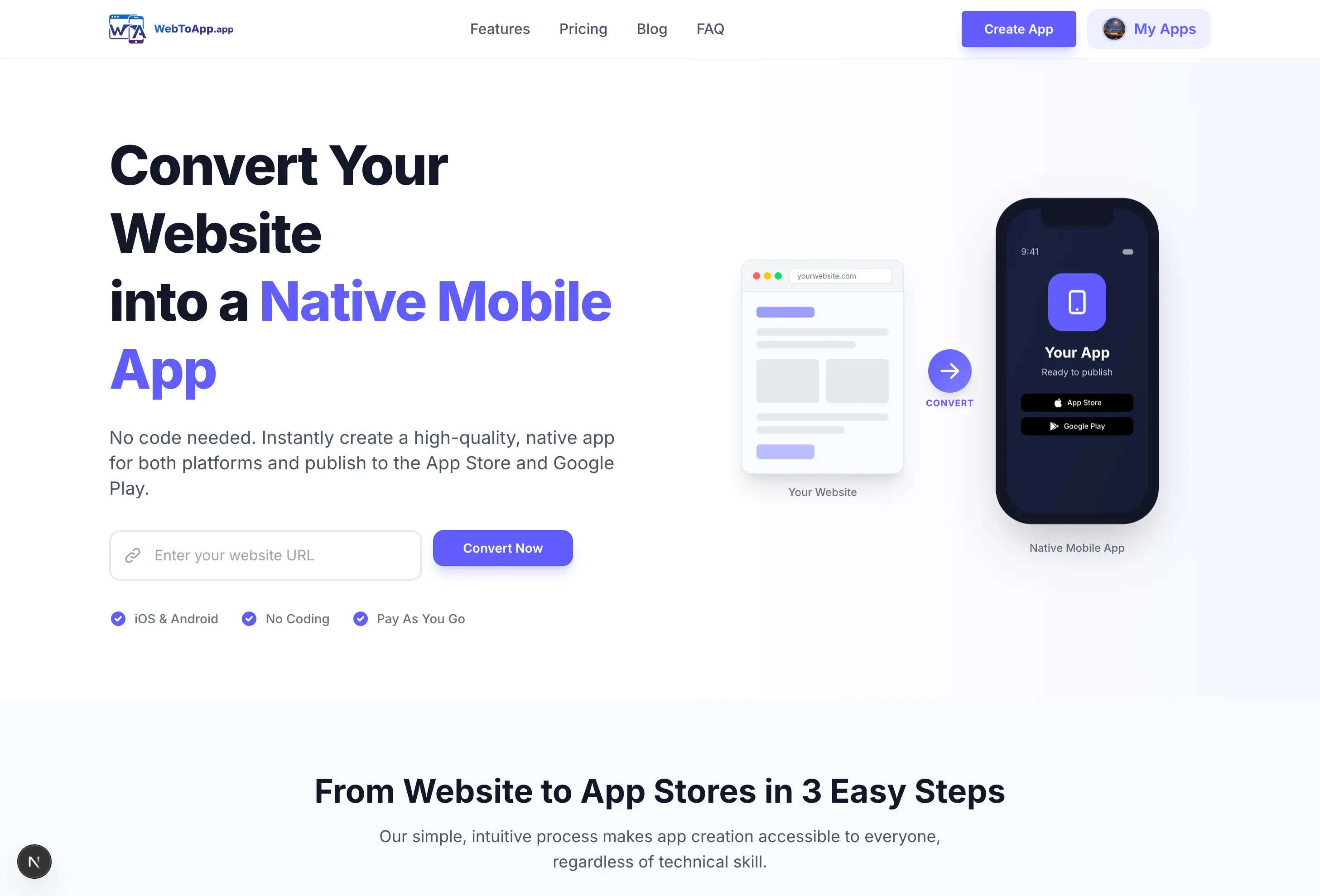
Getting Started with WebToApp: Convert Your Website to a Mobile App in Minutes
Learn how to transform your existing website into native iOS and Android apps using WebToApp. No coding required—just enter your URL and build.
WebToApp Team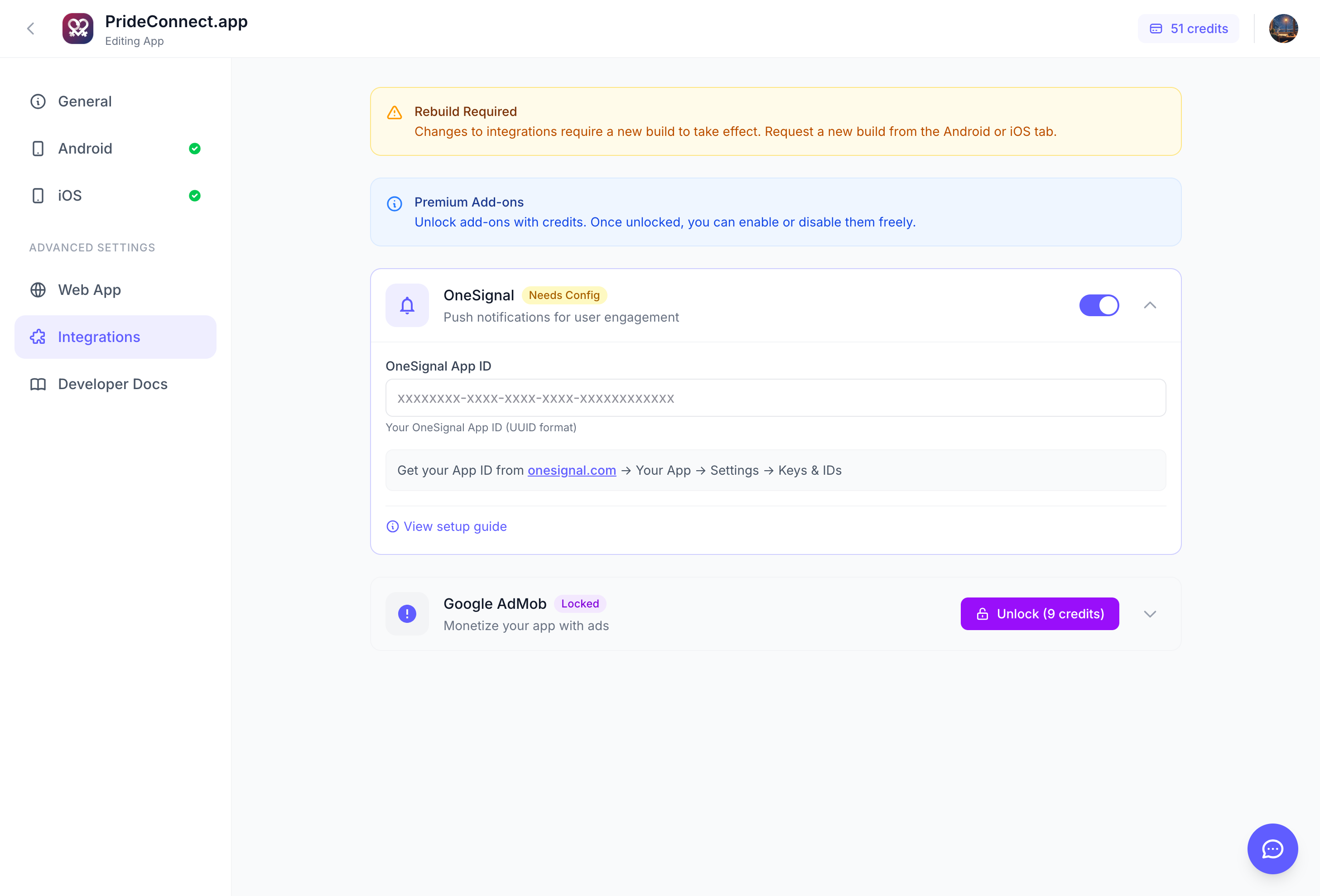 Features
Complete Guide to Push Notifications with OneSignal Integration
Master push notifications in your WebToApp mobile app. Learn how to set up OneSignal, send your first notification, and engage users effectively.
WebToApp Team