Getting Started with WebToApp: Convert Your Website to a Mobile App in Minutes
WebToApp Team
Product Team
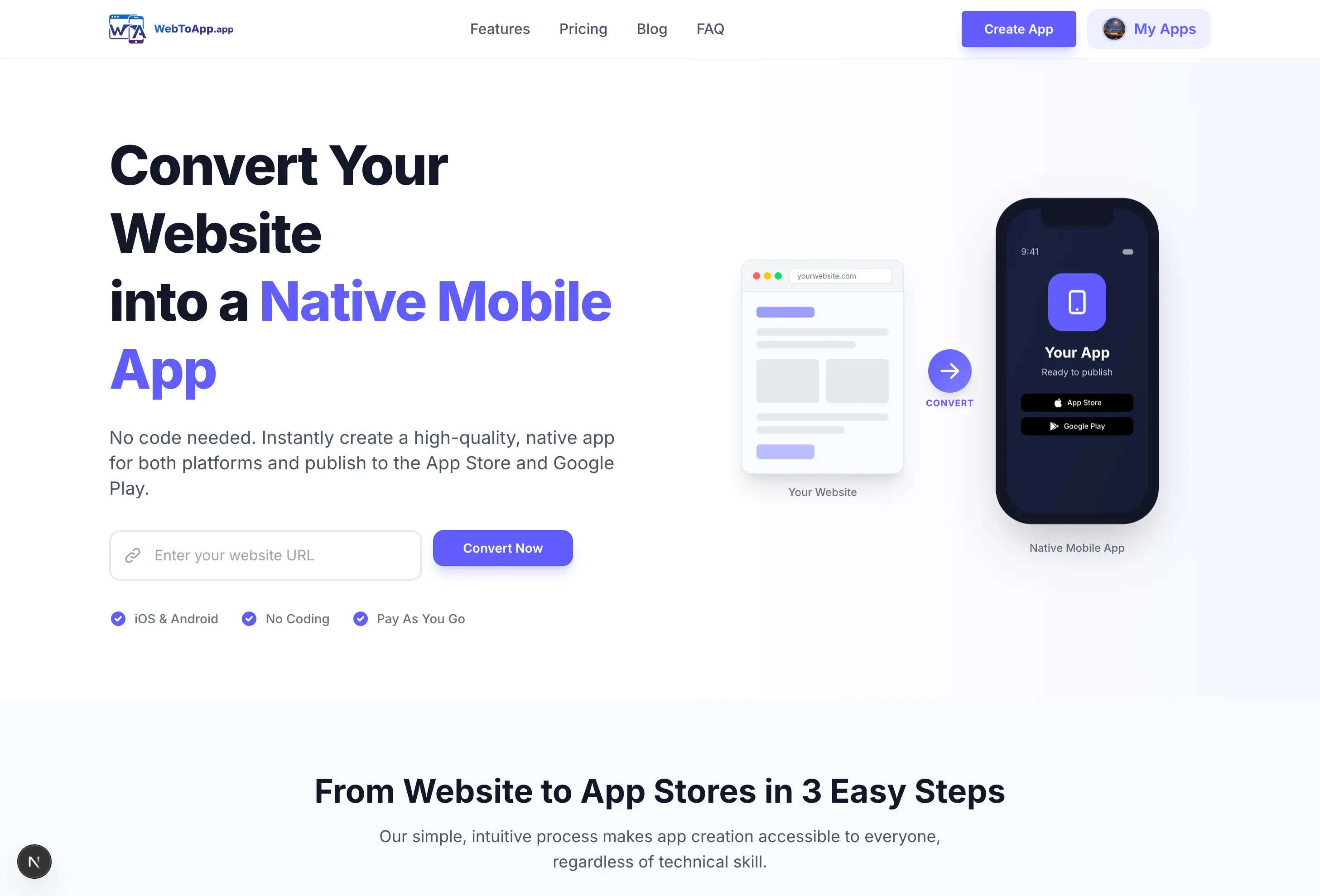
Converting your website into a native mobile app has never been easier. With WebToApp, you can transform any responsive website into iOS and Android apps in just minutes—no coding required. This guide will walk you through the entire process from start to finish.
#Why Convert Your Website to a Mobile App?
While responsive websites work great on mobile browsers, native apps offer significant advantages that can boost your business:
- Push notifications to re-engage users and drive traffic
- Home screen presence with your branded app icon
- Faster perceived performance with native navigation
- Offline support for a seamless user experience
- Access to device features like camera and file uploads
- Presence in the App Store and Google Play for discoverability
Pro Tip
Apps with push notifications see up to 88% higher engagement compared to websites alone. This is often the #1 reason businesses convert their sites to apps.
#Step 1: Enter Your Website URL
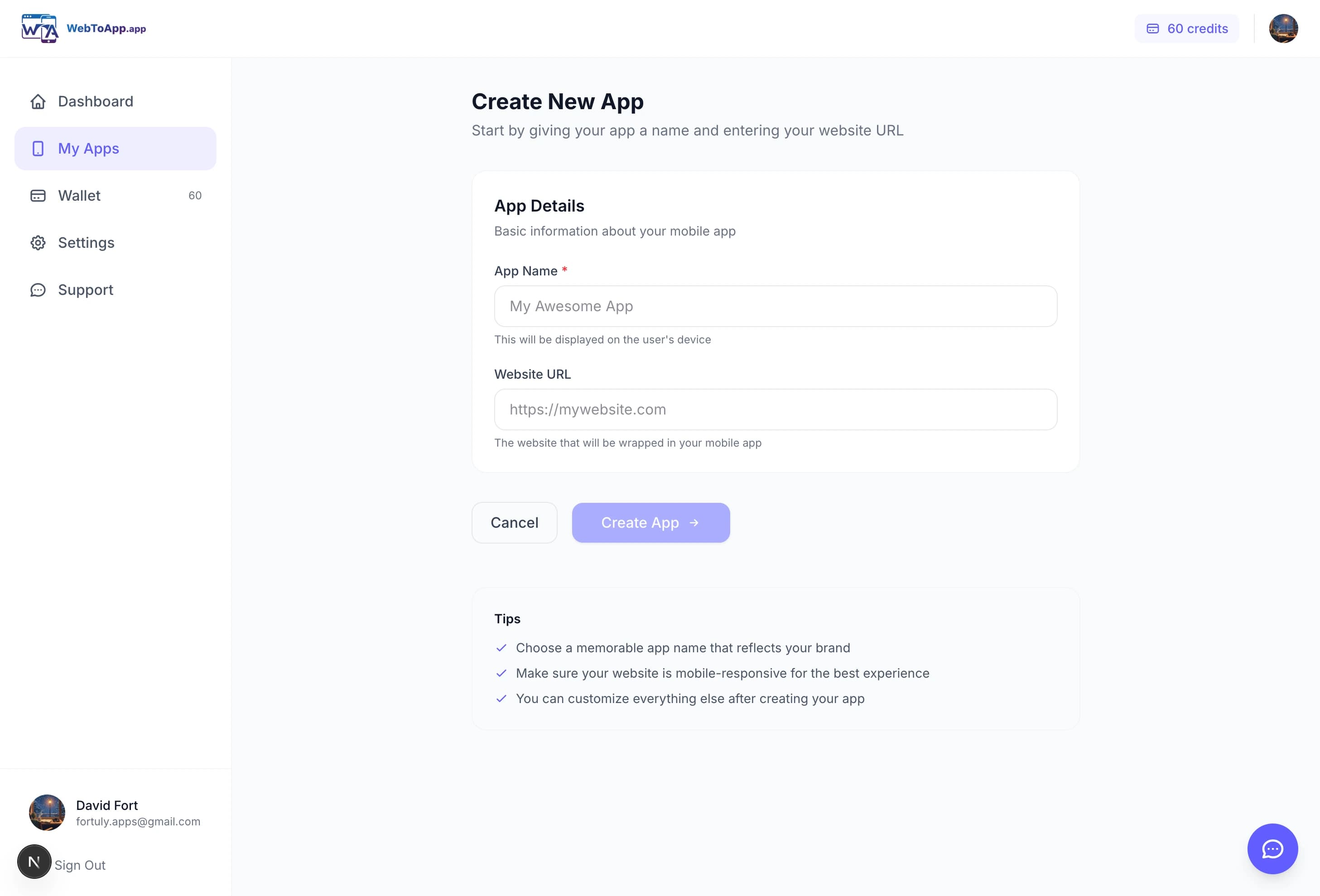
Start by signing up for a WebToApp account and navigating to 'Create New App'. Enter the full URL of your website (e.g., https://yoursite.com). Our system will automatically fetch your site's favicon and suggest an app name based on your page title.
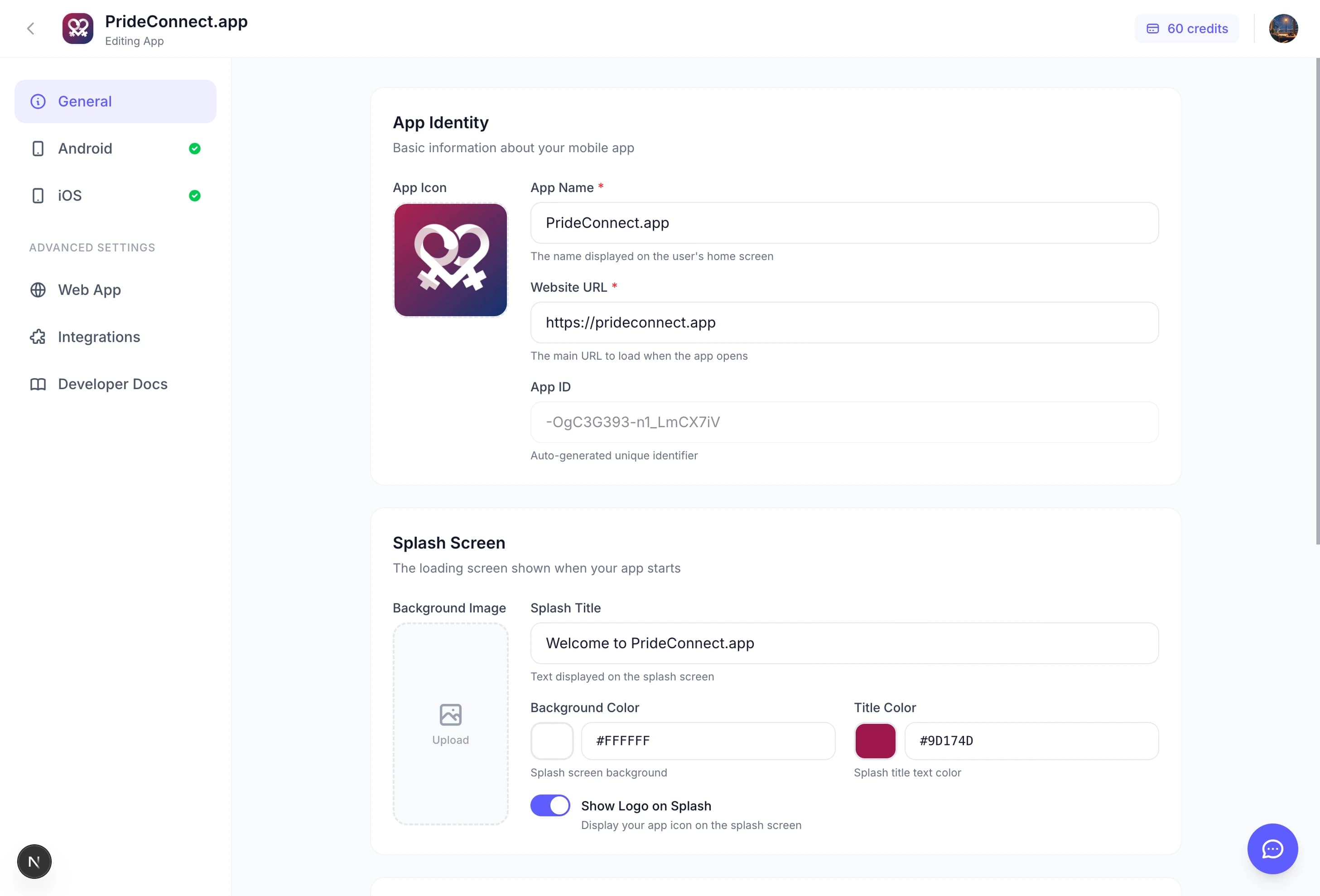
#Step 2: Customize Your App
Once your URL is entered, you can customize your app's appearance. This includes:
- App Name: The name shown under your app icon on users' devices
- App Icon: Upload a custom 1024x1024 icon or use the auto-detected favicon
- Splash Screen: The loading screen users see when opening your app
- Theme Colors: Match your brand's primary and accent colors
#Step 3: Configure Native Features
WebToApp supports powerful native features that go beyond a simple webview wrapper:
Push Notifications
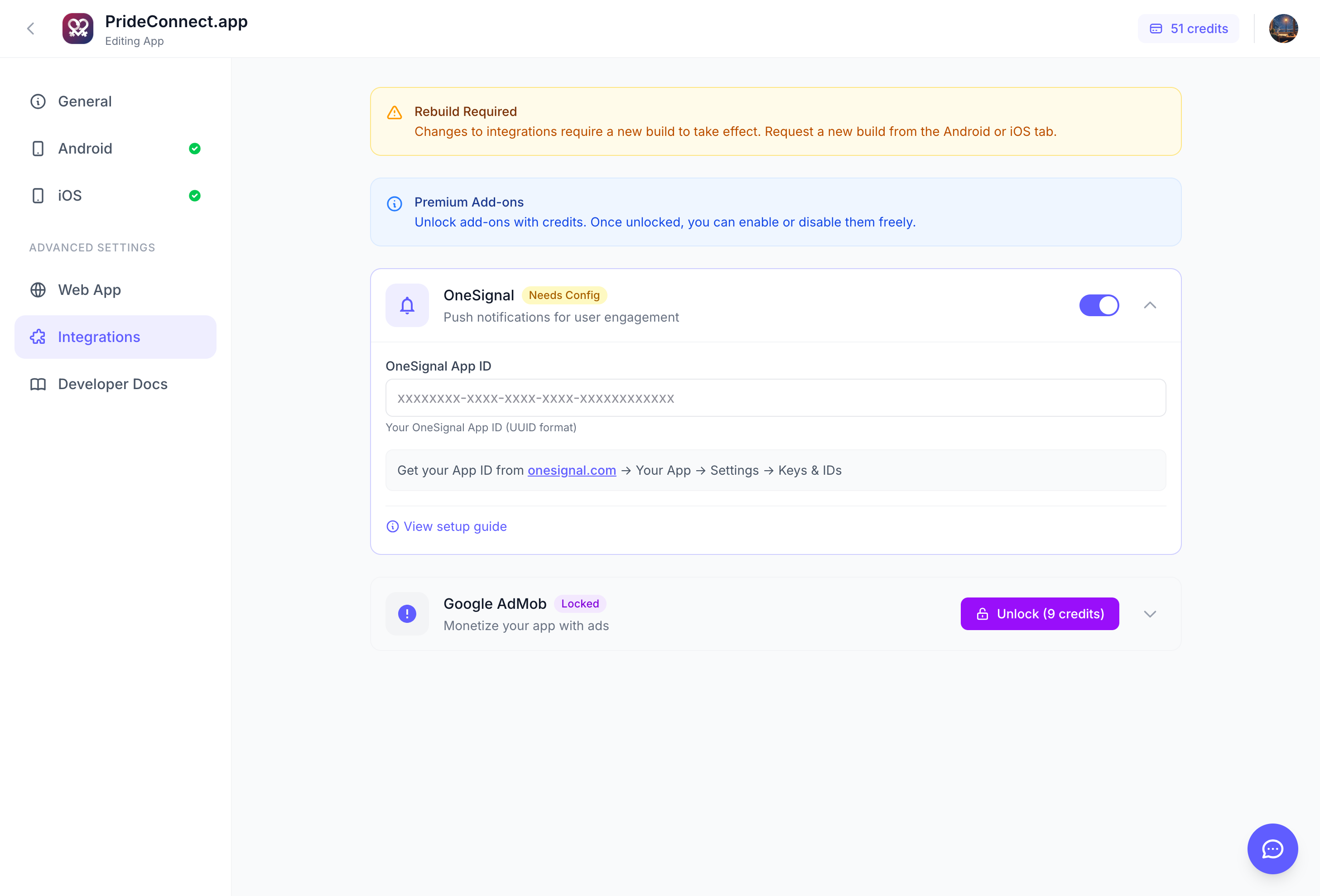
We integrate with OneSignal for reliable push notification delivery. You'll receive your own OneSignal dashboard to send targeted campaigns.
AdMob Monetization
Enable Google AdMob to display banner, interstitial, or rewarded ads within your app and generate revenue.
#Step 4: Build Your App
When you're happy with your configuration, click 'Build' to start the compilation process. We build your app in the cloud using the latest SDKs and best practices.
- iOS builds produce an IPA file ready for App Store Connect
- Android builds produce an AAB file ready for Google Play Console
- Build times are typically 5-10 minutes per platform
Important
You'll need an Apple Developer account ($99/year) for iOS apps and a Google Play Developer account ($25 one-time) for Android apps to publish to the stores.
#Next Steps
Once your app is built, download the IPA or AAB file and upload it to the respective app store. Apple and Google will review your app (usually 1-3 days for Apple, hours for Google), and then you're live!
“We went from idea to App Store in less than a week. WebToApp made the entire process painless.”
— Sarah M., E-commerce Store Owner
Ready to get started? Create your first app today and see how easy it is to extend your web presence to mobile.